










Style your desktop with Capybara Solid
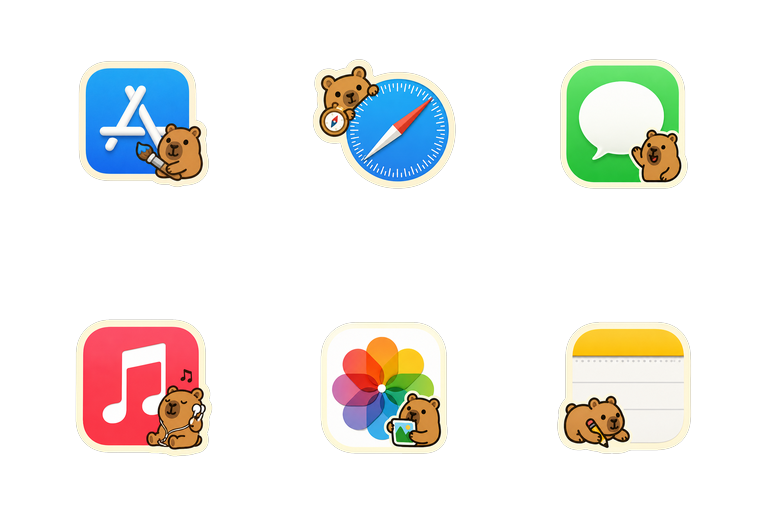
Capybara Solid adds warm caramel color and cocoa outlines to a relaxed, animal-themed Mac setup. Pair it with a cream, brown, or muted green background to keep the palette calm. Look through the preview for the apps you use daily, then start with a small set in the Dock. Nya Friends offers a different character-led direction if you want to compare styles.
Which icons are included?
The Capybara Solid catalog contains 168 icon artworks, including Finder, Folder, System Settings, App Store, Safari, Mail, Calendar, Contacts, Messages, FaceTime, Phone, and Photos shown above. This is an artwork count, not a promise that 168 apps will change on your Mac: results depend on installed apps and supported theme assignments.
Using a theme applies its supported app assignments. Folder artwork is available for separate folder customization; applying an app theme does not automatically restyle every folder. Read the folder icon guide for that workflow.
How to apply Capybara Solid
- Download and open NyaIcon on macOS Tahoe 26.
- Find Capybara Solid in the theme library and open its preview.
- Choose Use Theme and follow any setup prompts. Allow the operation to finish and review its result; apps that are not installed cannot be changed.
- Check your usual apps in Finder and the Dock. Use Reapply if you need to apply the active theme again.
For the full walkthrough, see how to change Mac app icons. NyaIcon changes icons; choose wallpaper separately in macOS. The Mac desktop customization guide covers matching colors and a readable Dock.
How to remove the theme
Open the active theme and choose Remove Theme to restore the apps changed by that theme. Icons applied individually are kept. To remove all customizations managed by NyaIcon, use Restore All in the toolbar and review the confirmation. Undo is available for the last theme change when the app offers it.
Download NyaIcon to try Capybara Solid
For macOS Tahoe 26. Preview the artwork above before applying the theme.