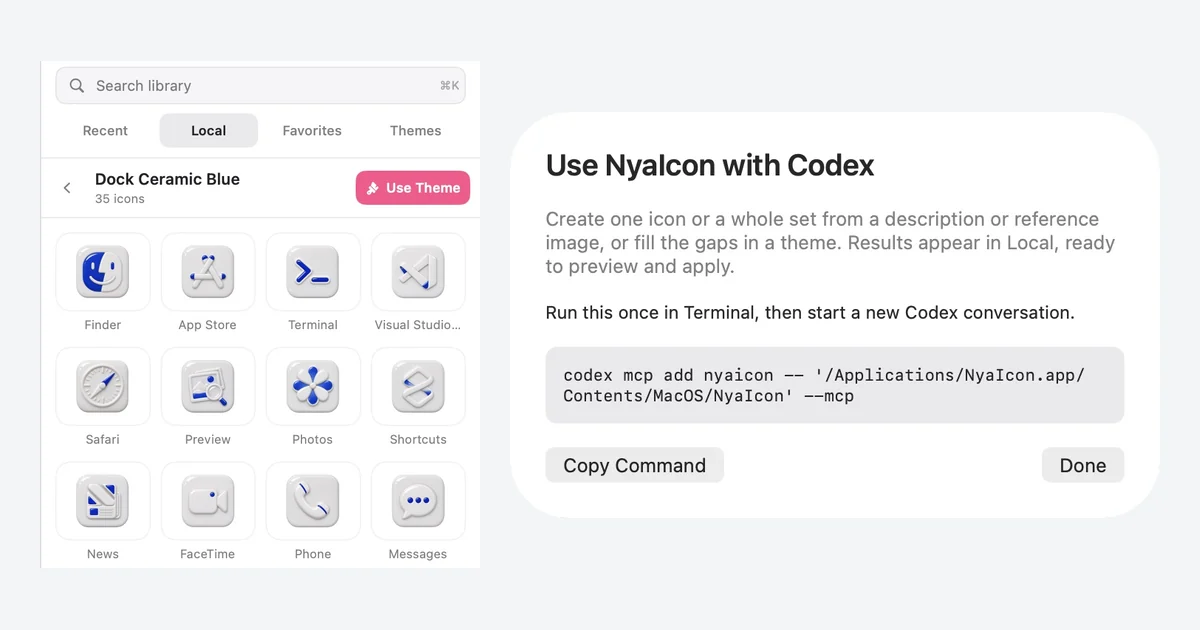
Describe the look in Codex. Preview and apply it in NyaIcon. Make one app icon, use a reference image, create a matching set, or fill the gaps in a theme you already like. Generated artwork is saved under Local; importing it does not change your Mac’s icons.
For NyaIcon 2.0, build 32 or later on macOS Tahoe 26. Check your build in NyaIcon → About NyaIcon. Updated November 15, 2026.
1. Connect NyaIcon to Codex
- Download NyaIcon, drag it into Applications, and open it once.
- Open Codex on the same Mac and sign in. Use a local conversation with access to your files.
- Copy this setup prompt into Codex. It can install the NyaIcon skill and configure the app connection for you.
Set up NyaIcon on this Mac. Read https://nyaicon.com/integrations/nyaicon/SETUP.md, install its NyaIcon skill, and connect the installed NyaIcon app through MCP. Preserve my other Codex settings. Verify the setup and tell me when to start a new local conversation. Do not generate artwork or change any icons yet.
The skill teaches Codex the icon workflows; MCP connects it to NyaIcon. Codex can set up both locally. Review any file-access approval it requests. You do not need to paste commands into Terminal for this route.
Prefer to connect manually?
In the desktop app’s Settings → MCP servers → Add server, choose STDIO, name it nyaicon, set the command to /Applications/NyaIcon.app/Contents/MacOS/NyaIcon, and add --mcp as its argument. Save and restart the connection. See OpenAI’s MCP guide.
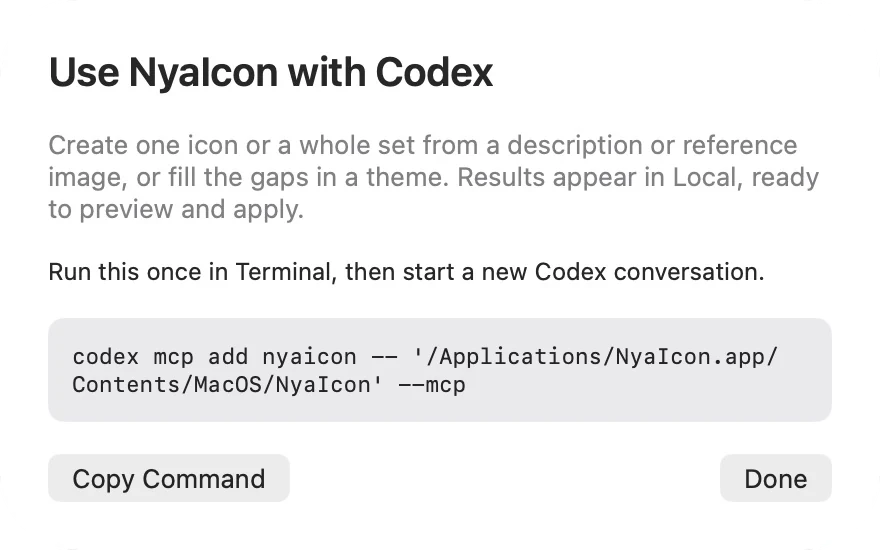
If you use the Codex CLI, NyaIcon’s File → Connect to Codex… copies this command to run in Terminal:
codex mcp add nyaicon -- /Applications/NyaIcon.app/Contents/MacOS/NyaIcon --mcpThe skill is optional. To install it manually, unzip the download and place its nyaicon folder in ~/.agents/skills/. It becomes available as $nyaicon. See OpenAI’s skill guide.
Looking for a skill store? Codex has a Plugins Directory. NyaIcon is distributed here as a local skill and MCP connection; it is not currently listed as a public directory plugin.
Open a new local Codex conversation on this Mac. First check the connection:
Use NyaIcon MCP to list my installed applications and local library. Do not change any icons.
You should see installed app names. An empty local library is normal if you have not imported anything yet. You do not need to build NyaIcon, download its source, or configure an image API key in NyaIcon.
2. Choose what you want to make
Use one of these prompts in Codex. Replace the app names, materials, and colors with your own choices. Start with one icon to settle on a style before generating a larger set.
One icon from a description
Use NyaIcon to find Spotify. Use your built-in image generation to create a white ceramic Spotify icon with cobalt-blue details and a transparent background. Save it to my local icon library for preview.
One icon from a reference
Attach an image to the conversation, or name an icon or theme already in NyaIcon. A reference can guide just one new icon.
Use this attached icon as a style reference. Generate a matching Safari icon with the same materials, colors, lighting, and padding, while keeping Safari recognizable. Use NyaIcon to save it as a standalone local icon.
A whole matching theme
Use NyaIcon to list my installed apps and show me the apps you will include. Generate a white ceramic and cobalt-blue icon for each app, with consistent lighting and padding. Save the separate images as one local theme named Ceramic Blue, with the correct app assignments. Tell me if any apps could not be completed.
To build a set from a reference, attach the reference and add: “Use this image’s style for the entire theme.” You can name a smaller group of apps instead of all installed apps. Ask for separate icon images, so each app gets its own usable asset.
Fill the gaps in an existing theme
Use NyaIcon to inspect the Glass theme and identify my installed apps that it does not cover. Use its existing icons as references and generate matching icons for the missing apps. Save a completed local copy, preserving its existing icons and leaving the online theme unchanged.
For an existing local theme, name it and ask Codex to add the missing icons to that theme. You can keep refining the artwork in the same conversation.
3. Preview, then apply in NyaIcon
- One icon: find it under Local → Icons. Select its app in Applications, then choose your generated icon.
- A new or completed theme: find it under Local → Themes, open it, review the app assignments, then click Use Theme. If you edited an active local theme, choose Update to apply its new version.
- Keep a favorite: hover over a theme card or its detail header to reveal the heart. Saved themes appear in Favorites alongside your saved icons and remain there after a restart.
Local themes use the same 2×2 previews and detail layout as online themes. Unused preview spaces stay empty. Your imported icons and themes stay in NyaIcon’s library even if you move the original image files.
Imports only save artwork for preview. They do not apply icons automatically. To undo a theme, use Remove Theme; see the restore guide for the scope of each restore action.
Image generation, usage, and privacy
NyaIcon is free and does not supply image-generation credits. Codex handles generation using the image tools available in your session. Built-in image generation counts toward your Codex usage limits; API-based generation is billed separately. See OpenAI’s image-generation guide for current availability and usage details.
The NyaIcon connection runs locally and copies imported artwork into your Mac’s library. When you ask Codex to inspect apps, read theme references, or generate artwork, the requested names, images, and prompts become part of your Codex workflow and are handled under your OpenAI account’s settings. Only share reference images you are comfortable using there.
If something does not work
- “command not found: codex”: use the setup prompt or desktop MCP settings above, or finish the CLI setup before retrying the Terminal command.
- NyaIcon tools are missing: open NyaIcon, check the NyaIcon entry in Codex’s MCP settings (or run
codex mcp get nyaiconif you use the CLI), and start a new local conversation. See OpenAI’s MCP setup guide. - “Connect to Codex” is missing: check the NyaIcon build number and install build 32 or later.
- Generation fails or reaches a limit: check your Codex sign-in and available image-generation tools. Try a single icon first. Existing local artwork remains available in NyaIcon.
- Artwork was generated but Local is empty: ask Codex to import the saved image or theme through NyaIcon, and check that the import succeeded.
- The Dock still shows an old icon: some running apps manage their own Dock image or launch from a separate app location. Steam and Codex still have known Dock display limitations in this release; generating artwork for them does not guarantee the running Dock icon will change. See Dock troubleshooting.
Need help? Send your NyaIcon build, macOS version, and the exact error through Help & Support.